Help Center
Step-by-step guides for everything on BookAService — switch the language from the top bar to read in English or Serbian.
Everything you need to find providers, book appointments, manage your reservations, and control your data on BookAService.
The customer
A service customer is a person who intends to use a service arranged through a reservation for their own needs.
Creating an account
Click Sign up from the home page or top navigation and fill in your first and last name, email, phone, and a password. Phone fields accept digits, +, -, spaces and parentheses only — letters are stripped automatically.
After you submit the form, a 6-digit verification code is sent to your email and you need to enter it on the Verify email page.
Verifying your email
Open the email titled Verify your BookAService account and copy the 6-digit code. On the Verify email page, paste the code and click Verify.
If the email does not arrive within a minute or two, check your spam folder. You can request a new code from the same page.
Finding a service
You have three ways to discover providers:
- Browse by category from the home page.
- Use the search bar in the header — type a service name, a category, a tag or a city.
- Open the Search page for filters: category, city, rating.
Search is accent- and script-insensitive, so frizer matches frizer, frizér, фризер and фризер equally. It also matches across English and Serbian — looking for haircut also finds šišanje.
Booking an appointment
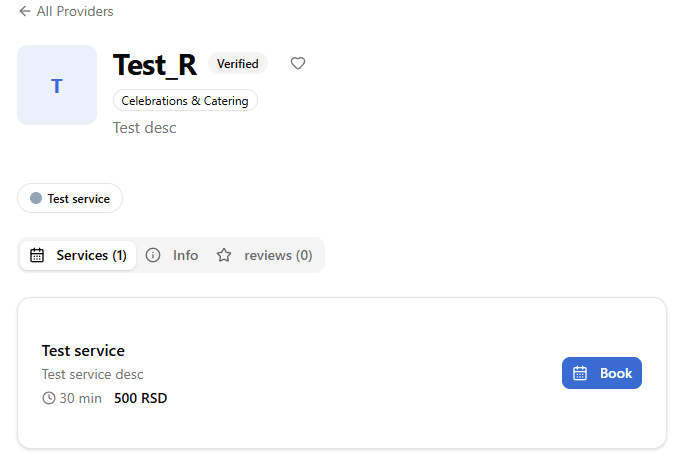
On the provider's profile, click Book on the service you want.
You can pick one service or several, then choose a date and an available time slot. If the provider has multiple employees, pick one or choose First available employee — only employees who can perform the service at that location are listed.
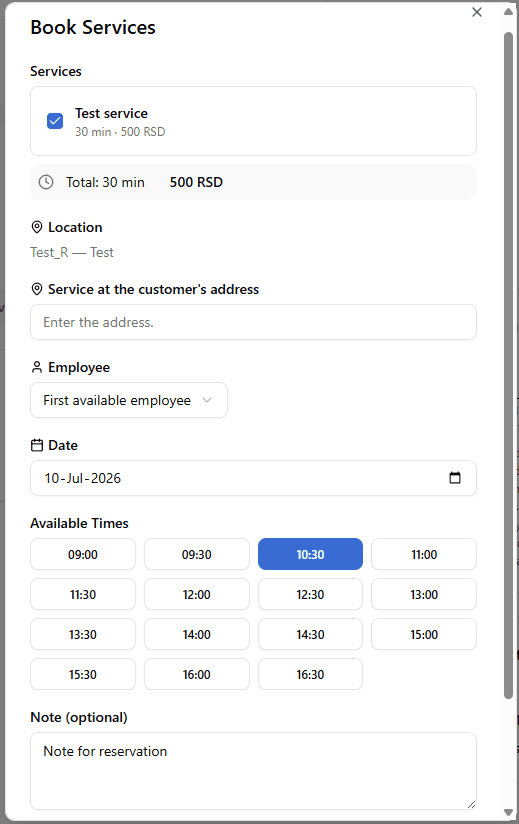
If the provider supports it, you can request the service at your address by entering it in the Service at customer address field. Otherwise, the appointment is at the provider's location.
You can add your comment, question or request in the Note field.
Then you confirm the reservation.
After confirmation, the reservation is either confirmed immediately or set to Pending — the provider may need to approve it manually.
Managing your reservations
Open My Reservations from the dashboard or top menu. Reservations are shown by status. You can use the filters to narrow your search.
Open a reservation to see its details. From there you can cancel (if still within the cancellation window) or message the provider. If the reservation is completed, you can leave a review.
Messaging with providers
Open Messages from the dashboard or menu. Each message thread is tied to a reservation with a provider. A recently unread thread floats to the top.
You can start a thread from a reservation. Messages are in-app only — they are not sent by SMS.
Leaving a review
Once a reservation moves to Completed, you can rate it from 1 to 10 stars and leave a written comment. The Leave review button appears on the reservation in your list.
One review per reservation. The rating cannot be changed after submission, but the provider can post a public reply.
Reviews are public on the provider's profile. Be honest and constructive — abusive content can be removed by moderators.
Favorite providers
You can mark a provider as a favorite and they stay in your list. On the provider's profile, click the heart icon and the provider appears in your Favorite providers list. Click the heart icon again in the Favorite providers list to remove the provider from it.
Notification preferences
In Settings, under Notification preferences, you can choose which events you receive notifications for and how (in-app bell or email).
System notifications cannot be turned off. Some basic notifications are enabled on one or both channels.
Depending on your choices, notifications arrive in the in-app Notifications and the bell badge, or by email.
Privacy controls (GDPR Art. 18 / Art. 21)
Settings > Privacy gives you four controls:
- Export my data — download a JSON copy of everything we hold about you.
- Request restriction (Art. 18) — request a temporary freeze of processing. An admin reviews and approves it; once active, you cannot book, post reviews, update profile or receive notifications until you withdraw the restriction.
- File an objection (Art. 21) — record a formal objection to legitimate-interest-based processing. This is an instant flag, not subject to admin approval.
- Delete my account — permanent removal. Cannot be undone.
Deleting your account
Settings > Privacy > Delete my account triggers a permanent removal. You are logged out and your data is purged according to our retention policy.
Past reservations remain anonymized in the provider's records for accounting and legal reasons. Reviews are anonymized but not deleted.
If you own an active provider, you are redirected to the Provider Deactivation page first — you cannot delete a user account while a provider is live.